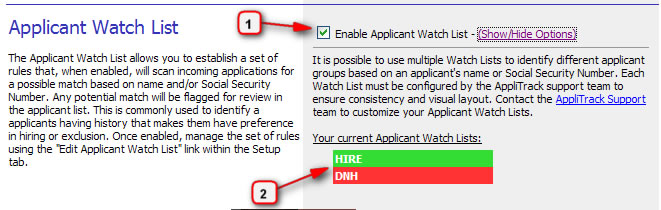
This preference allows you to enable a function in AppliTrack called the Applicant Watch List. The Applicant Watch List provides a way for SuperUsers to automatically flag incoming applications as belonging to one or more Watch Lists. This feature is useful for those organizations that maintain an internal blacklist or white-list of employment candidates.
1) To activate processing of Applicant Watch List rules, enable the checkbox labeled Enable Applicant Watch List. When the Applicant Watch List preference is disabled, all existing Watch List Rules will be preserved should the preference be needed for future use.
2) The list of Watch Lists configured for your AppliTrack system, as well as their visual style, will display as an option for this preference. This set of watch lists is configured on your behalf by the AppliTrack Support group. The default Watch Lists are:
Each Watch List is made up of one or more Rules; each Rule may match multiple applications within AppliTrack. Watch List Rules consist of a combination of traits to match within an incoming application as well as comments that are associated with the existence of that rule. For example, if a school district maintains a policy of giving priority in hiring to employees previously terminated because of position-elimination, that district might create a series of Rules in their "HIRE" Watch List to alert them of previous employees that are re-applying for work.
3) When the Applicant Watch List preference is enabled, a link titled Manage Watch List will appear within the setup tab

Accessing the Manage Watch List presents a list-view of the rules associated with each available Watch List.
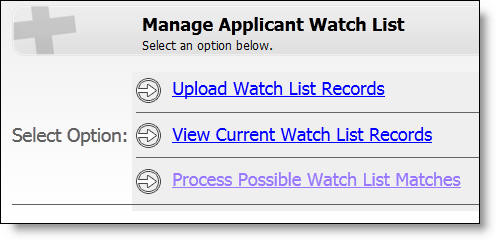
The options displayed include:
Upload Watch List Rules
The specific instructions regarding the format of the Microsoft Excel file can be found by following the Manage Watch List link. You will also find a Sample File there as well.

1) Use the Add rule(s) to list link to create up to 15 new Watch List Rules at once. When creating a new Watch List Rule, you will be presented with an input for Applicant First Name, Applicant Last Name, and Applicant SSN. An input for Comments to be associated with each rule is also available. Refer to the section "How Rules are Evaluated" for information about creating rules.
2) Each Watch List has a common name that refers to the collection of rules associated with that list. In the figure, we identify #2 as the "DNH Watch List." By default, the AppliTrack system is configured with just two Watch Lists - DNH and HIRE. It is possible to have many lists, each with its own visual appearance and name. Please contact support@generalasp.com if you would like to create other list types or change the appearance of the existing entries.
The LastName (3), FirstName (4), SSN (5), and Address (6) fields are part of each rule within a Watch List. Other fields included in each rule include Address2, City, State, and Zip Code. When working with a Watch List rule, consider that either a LastName and FirstName value, or an SSN value are required. This information is used in evaluating the rule against incoming applications. Review the section, "How Rules are Evaluated" to determine what values are appropriate for using in your situation.
7) Each rule may also have Comments to help further identify positive matches to rule or provide background information as to why the rule exists.
8) & 9) Once a rule is established, one may use the "view matches" and "View all rulename matches" links to execute a search in AppliTrack to find any existing applicants that are possible matches.
Important: Each rule will match an application based on either the first and last name, or the SSN value. (If you do not collect SSN on your employment application, rules using this information will never match.) Rules are evaluated against each application according to the following heuristics:
For example, if an application is received with the name of Armstrong, Ann and a SSN of 000-00-0000, the following rules will evaluate as:
| Rule Last Name | Rule First Name | Rule SSN | Result |
| Armstrong | Ann | 000-00-0000 | Positive match (name & SSN) |
| Armstrong | Ann | Positive match (name) | |
| 000-00-0000 | Positive match (SSN) | ||
| Jones | Bill | 000-00-0000 | Positive match (SSN) name ignored |
| Armstrong | Ann | 111-11-1111 | Positive match (name) SSN ignored |
| Armstrong | Annmarie | Positive match (name) | |
| Armstrong | A | Positive match (name) | |
| Armstr | Ann | Non-match |
A list of all possible matches that have not been confirmed or dismissed will be displayed in a list by following the Process Possible Watch List Matches link.
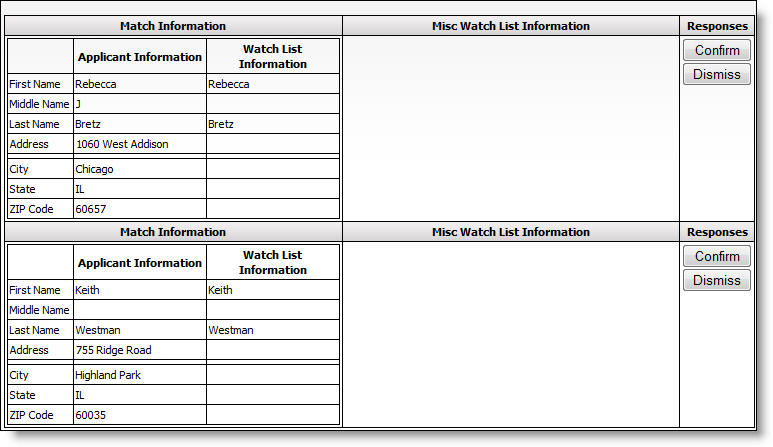
When a match is identified by the process listed in "How Rules are Evaluated" it will appear in this list. On this screen the user has the opportunity to Confirm or Dismiss the possible match. The match should be Confirmed if the user determines that the applicant is the person identified in the Watch List rule. The match should be Dismissed when the user determines that the system incorrectly matched this applicant to this Watch List rule.
Even if the match is dismissed or confirmed, the Watch List rule will continue to be compared against all new applicants.
When the Applicant Watch List preference is enabled, users with SuperUser privilege in AppliTrack will be presented with a new column titled "Watch" in the applicant grid. Any application matching a Watch List rule will be flagged with that rule name in its associated visual style (1). Applications not matching any rule will be blank in this column.

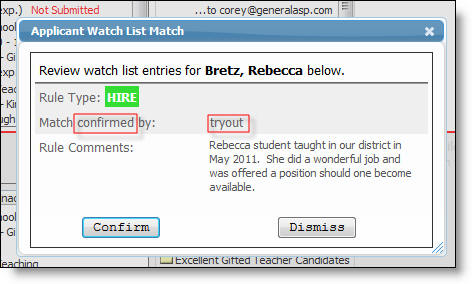
For any application that matches a rule, the user may click the contents of the Watch column to see the detail of (1) how the application matches the Watch List rule(s), (2) any comments associated with the matching rule(s), and (3) buttons to Confirm or Dismiss the match. To remove the detailed matching information from the screen, click the "X" in the upper right corner.
If a match is dismissed, the colored flag will be removed from all places and the applicant will be treated like any other applicant.

If the match is confirmed, this screen will change to indicate that the match has been confirmed and this applicant is the same person the Watch List rule is referring to.
Return to: Accessing Preferences